> ## Documentation Index
> Fetch the complete documentation index at: https://docs.withbind.com/llms.txt
> Use this file to discover all available pages before exploring further.
# Item Creation
> Our vast Product Catalog offers a simplified way to create Items.
## Search
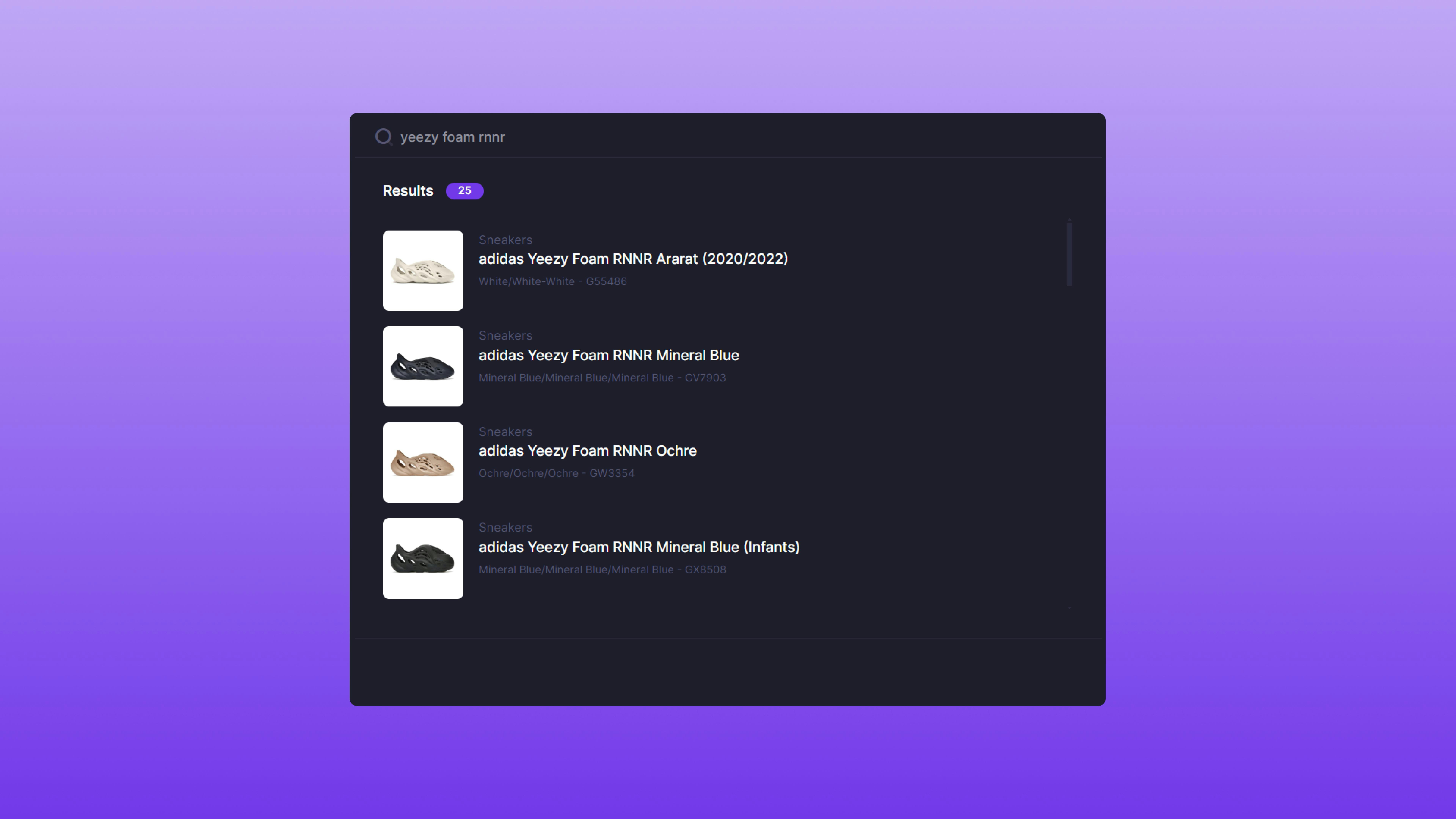 To find a Product, simply search via keyword(s) or a product's SKU.
## Searching Effectively
Use keywords related to the product's brand, model, or specific attributes. For instance, searching `adidas yeezy black` will narrow the results to products that have a combination of those words. To be even more granular, searching `adidas yeezy foam black` would return all results related to the Adidas Yeezy Foam Runner model that also have a black colorway.
When searching for a specific product, entering its SKU (Stock Keeping Unit) will bring up the exact product immediately. This is the quickest way to find items if you know the SKU.
Once you find the product you desire, select it to access the [Product Overview](/consigner-guide/guides/item-creation#product-overview).
## Product Overview
To find a Product, simply search via keyword(s) or a product's SKU.
## Searching Effectively
Use keywords related to the product's brand, model, or specific attributes. For instance, searching `adidas yeezy black` will narrow the results to products that have a combination of those words. To be even more granular, searching `adidas yeezy foam black` would return all results related to the Adidas Yeezy Foam Runner model that also have a black colorway.
When searching for a specific product, entering its SKU (Stock Keeping Unit) will bring up the exact product immediately. This is the quickest way to find items if you know the SKU.
Once you find the product you desire, select it to access the [Product Overview](/consigner-guide/guides/item-creation#product-overview).
## Product Overview
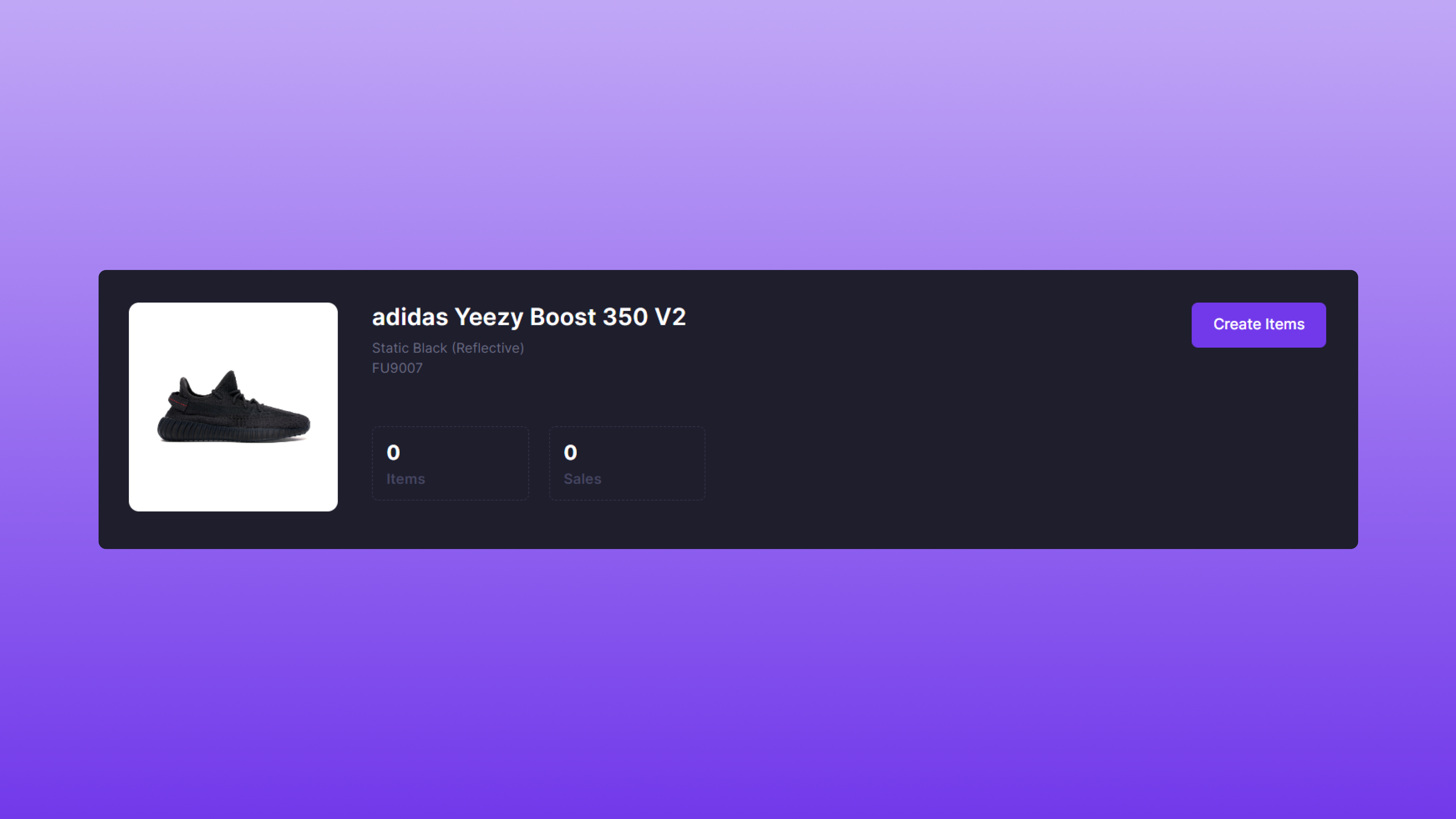 The Product Overview section serves as a central hub for viewing individual SKUs. It presents a detailed summary of each product, showcasing current inventory and sales data. This immediate access to critical information enables you to make data-driven decisions efficiently.
## Create Item
Upon clicking the **Create Items** button from the [Product Overview](/consigner-guide/guides/item-creation#product-overview) page, you'll be redirected to the Create Items page.
### Size Selection
The Product Overview section serves as a central hub for viewing individual SKUs. It presents a detailed summary of each product, showcasing current inventory and sales data. This immediate access to critical information enables you to make data-driven decisions efficiently.
## Create Item
Upon clicking the **Create Items** button from the [Product Overview](/consigner-guide/guides/item-creation#product-overview) page, you'll be redirected to the Create Items page.
### Size Selection
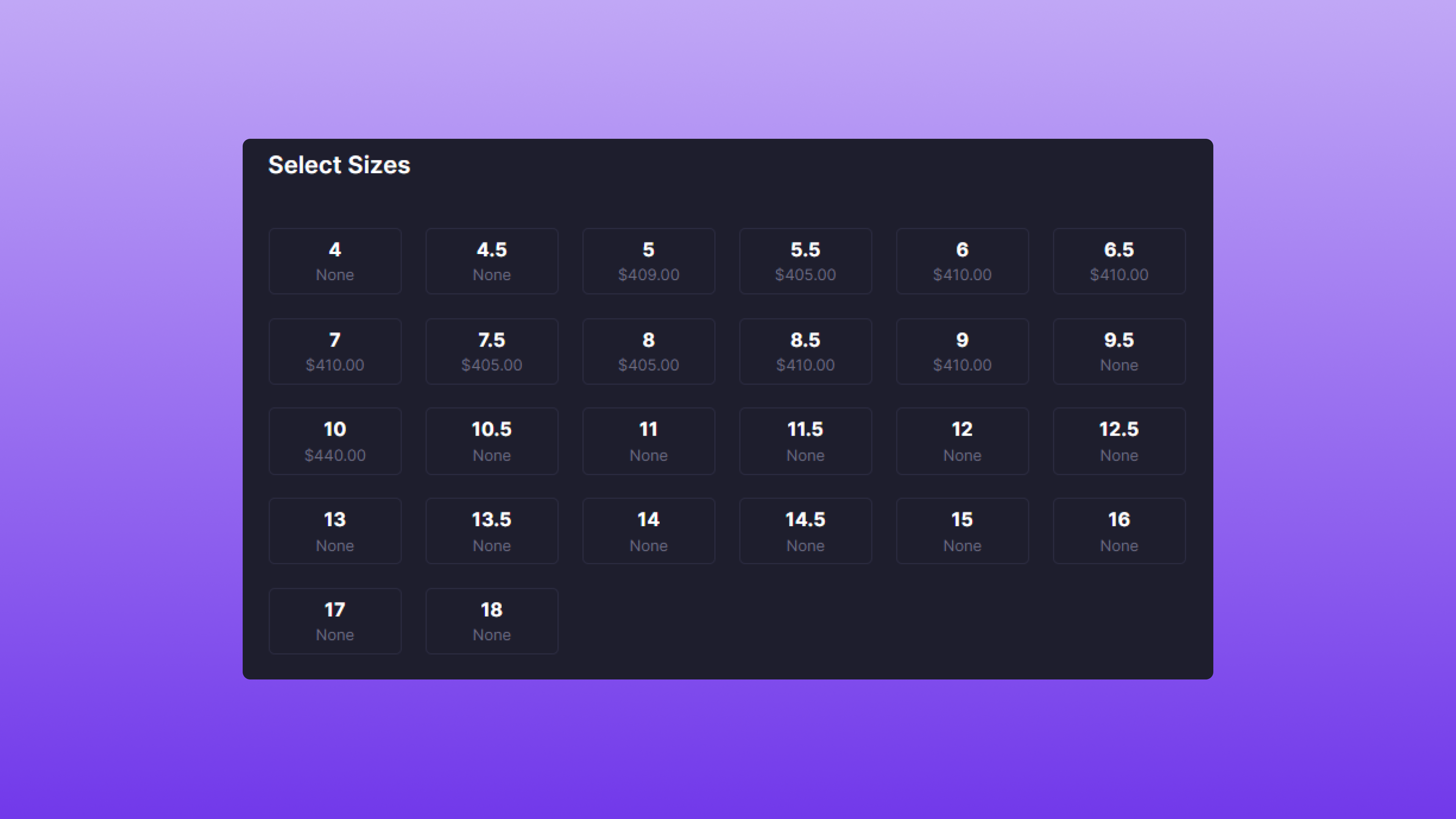 After clicking the **Create Items** button, you'll see a sizing chart that displays the lowest Active Item price for each size. If the size does not exist in the store's inventory, **None** will be displayed. Once a size is clicked, it'll create a new row within the table with the selected size populated.
### Location Selection
To assign a Location to the Item, simply select the dropdown and pick the correct location.
### Condition Selection
To assign a condition to the Item, simply select the dropdown and pick either **New** or **Pre-Owned**.
### Currency Amount Input
Finally, assign the Item's **List Price**. Here's a quick breakdown of the value:
* **List Price**: Dollar amount (whole number) representing the price the Item will be sold at.
### Create the Items
Here's an example of a correct form:
After clicking the **Create Items** button, you'll see a sizing chart that displays the lowest Active Item price for each size. If the size does not exist in the store's inventory, **None** will be displayed. Once a size is clicked, it'll create a new row within the table with the selected size populated.
### Location Selection
To assign a Location to the Item, simply select the dropdown and pick the correct location.
### Condition Selection
To assign a condition to the Item, simply select the dropdown and pick either **New** or **Pre-Owned**.
### Currency Amount Input
Finally, assign the Item's **List Price**. Here's a quick breakdown of the value:
* **List Price**: Dollar amount (whole number) representing the price the Item will be sold at.
### Create the Items
Here's an example of a correct form:
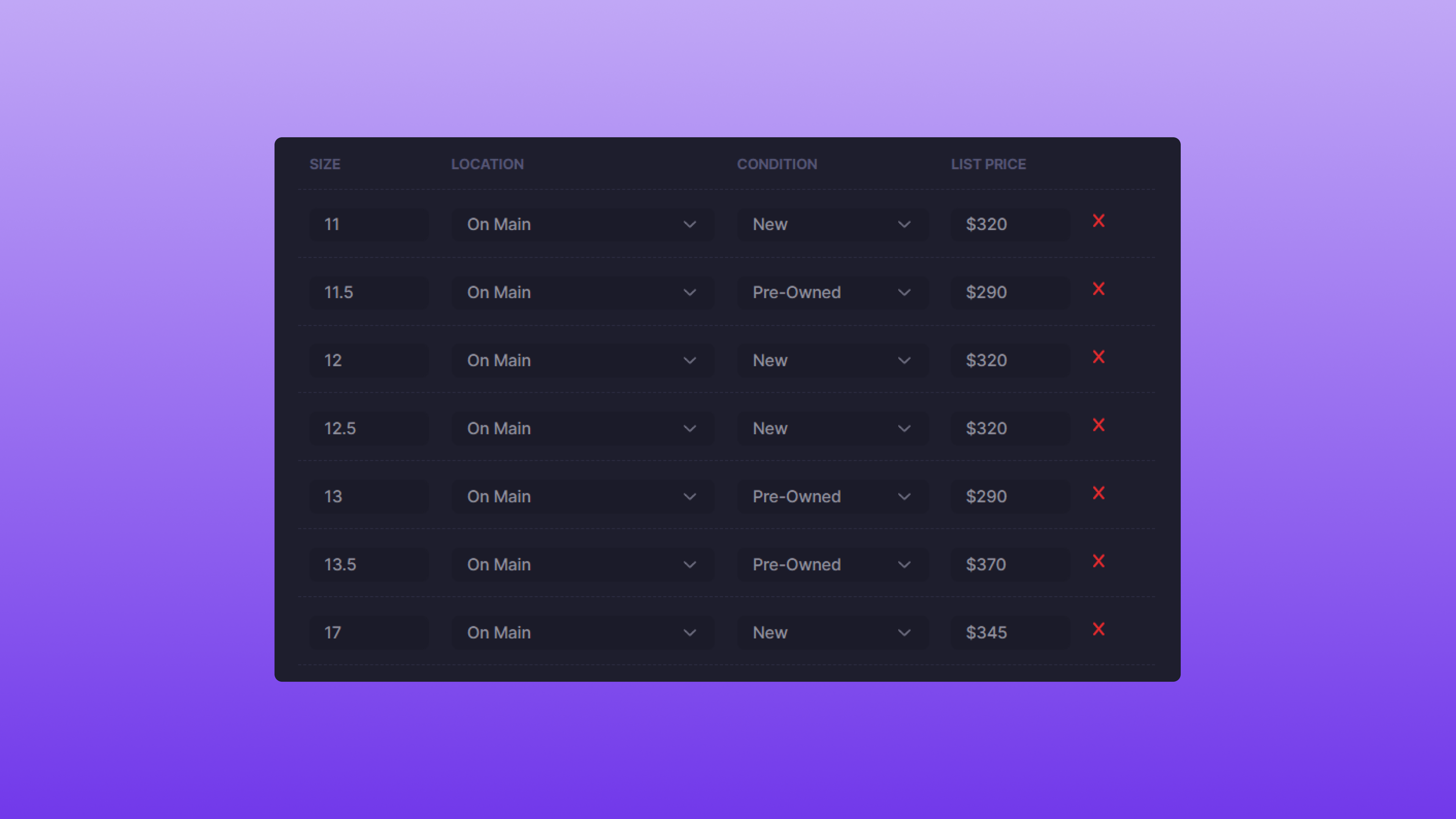 If you made a mistake, click the **X** icon, and the row will be deleted.
If the information is correct, click **Create Items,** and the Items will be onboarded within Bind. You'll also be redirected to the [Product Overview](/platform/catalog/product-overview).
## After Creation
Once the Items have been created, they will be assigned the `Awaiting Item` status and are available to be dropped off at your selected location.
If you made a mistake, click the **X** icon, and the row will be deleted.
If the information is correct, click **Create Items,** and the Items will be onboarded within Bind. You'll also be redirected to the [Product Overview](/platform/catalog/product-overview).
## After Creation
Once the Items have been created, they will be assigned the `Awaiting Item` status and are available to be dropped off at your selected location.