> ## Documentation Index
> Fetch the complete documentation index at: https://docs.withbind.com/llms.txt
> Use this file to discover all available pages before exploring further.
# Create Product
> Customize your store's offerings by creating unique products, filling gaps in our extensive catalog and tailoring your inventory to meet customer demand.
## About
Admins and Employees have the capability to enrich the inventory by creating **Custom Products**. This feature is particularly useful when a desired product is not already available in our [Catalog](/platform/catalog/search). **Custom Product** creation allows for the addition of unique Items with specific details and images, ensuring that even the most niche products can be offered to your customers, reflecting the diversity and depth of your store's range.
## Create a Product
Upon clicking the **Create New Product** button from the [Search](/platform/catalog/search) drop-down, you'll be redirected to the Create Product page.
### Product Content
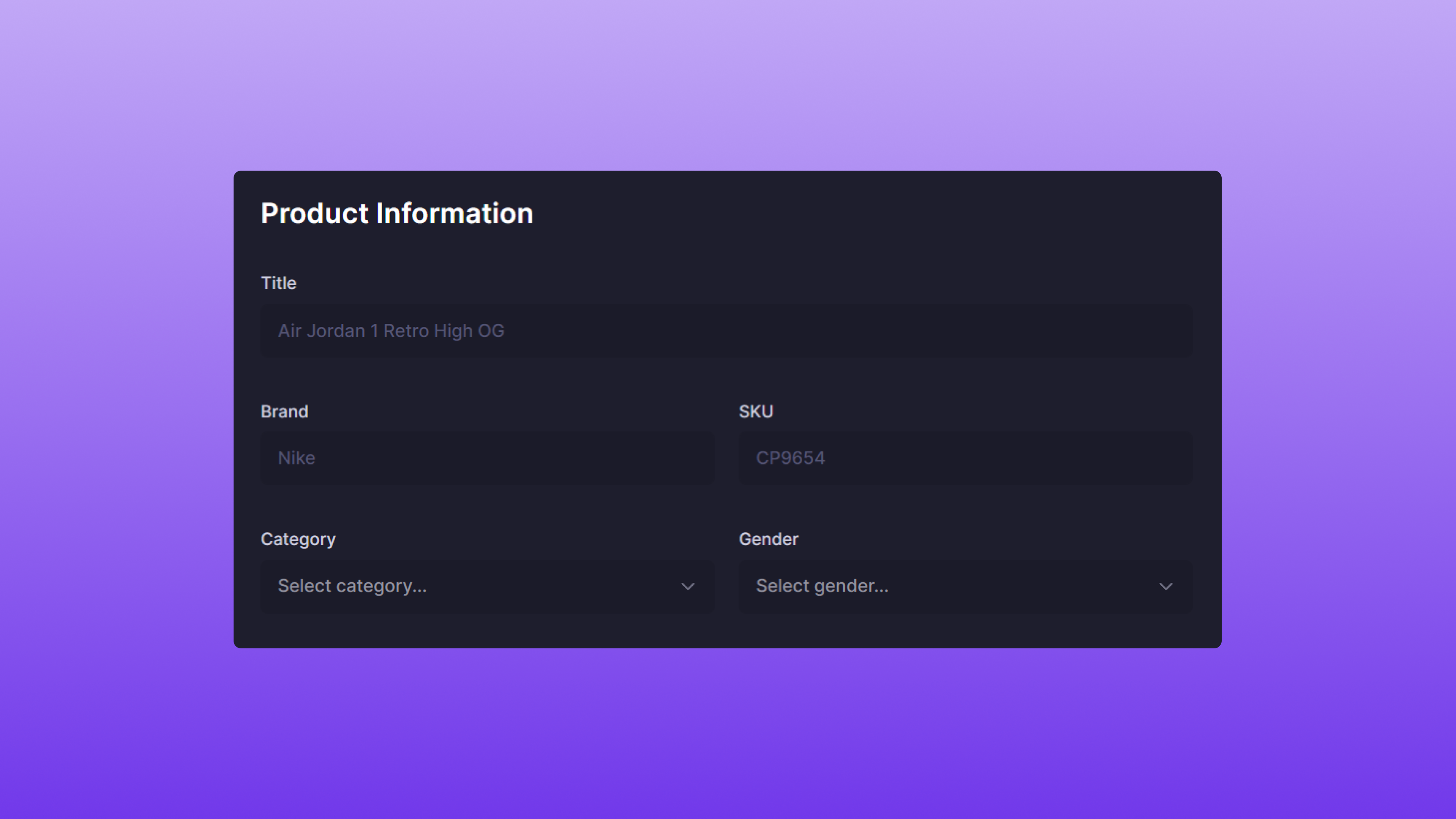 When creating a **Custom Product**, it's important to include specific details that will appear in both the Catalog and your Shopify store. These attributes not only help in identifying and organizing your inventory, but also play a critical role in how your products are presented and found by users and customers.
* **Title**: This is the primary name of the product, as seen by users in the [Catalog](/platform/catalog/search) and on Shopify.
* **Brand**: This identifies the manufacturer or designer of the product and will be listed as the vendor on Shopify.
* **SKU**: The unique Stock Keeping Unit assigned to the product and used for inventory tracking purposes. This attribute is searchable via the [Catalog](/platform/catalog/search).
* **Category**: Defines the [Product Category](/platform/store-settings/product-categories), which will also be used to calculate shipping rates on Shopify.
* **Gender**: Specifies the target demographic for the product, the available options are:
* Men
* Women
* Unisex
### Product Image
When creating a **Custom Product**, it's important to include specific details that will appear in both the Catalog and your Shopify store. These attributes not only help in identifying and organizing your inventory, but also play a critical role in how your products are presented and found by users and customers.
* **Title**: This is the primary name of the product, as seen by users in the [Catalog](/platform/catalog/search) and on Shopify.
* **Brand**: This identifies the manufacturer or designer of the product and will be listed as the vendor on Shopify.
* **SKU**: The unique Stock Keeping Unit assigned to the product and used for inventory tracking purposes. This attribute is searchable via the [Catalog](/platform/catalog/search).
* **Category**: Defines the [Product Category](/platform/store-settings/product-categories), which will also be used to calculate shipping rates on Shopify.
* **Gender**: Specifies the target demographic for the product, the available options are:
* Men
* Women
* Unisex
### Product Image
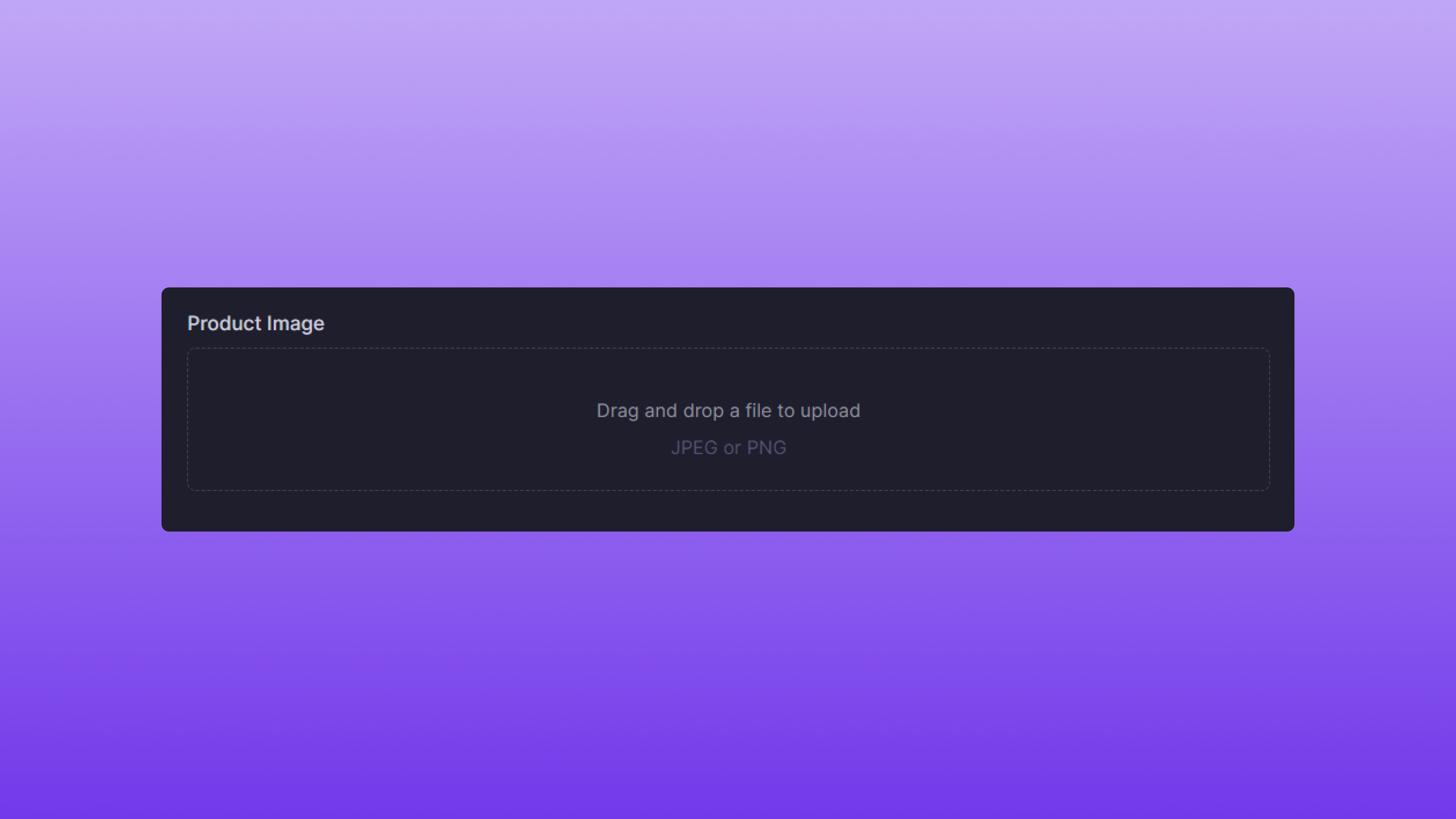 Upload the image of your choice for the Custom Product. To best ensure compatibility with Bind, make sure the image has a white or transparent background. Here are a few examples:
#### Image Examples
* [Correct image type](https://i.imgur.com/oA47SXO.png)
* [Incorrect image type](https://i.imgur.com/iuIEqWb.png)
#### Uploading the Image
Ensure your image is in JPG/JPEG or PNG format for a successful upload. Simply drag and drop your image file onto the page, or click the **Product Image** area to select a file from your device.
### Product Sizes
Upload the image of your choice for the Custom Product. To best ensure compatibility with Bind, make sure the image has a white or transparent background. Here are a few examples:
#### Image Examples
* [Correct image type](https://i.imgur.com/oA47SXO.png)
* [Incorrect image type](https://i.imgur.com/iuIEqWb.png)
#### Uploading the Image
Ensure your image is in JPG/JPEG or PNG format for a successful upload. Simply drag and drop your image file onto the page, or click the **Product Image** area to select a file from your device.
### Product Sizes
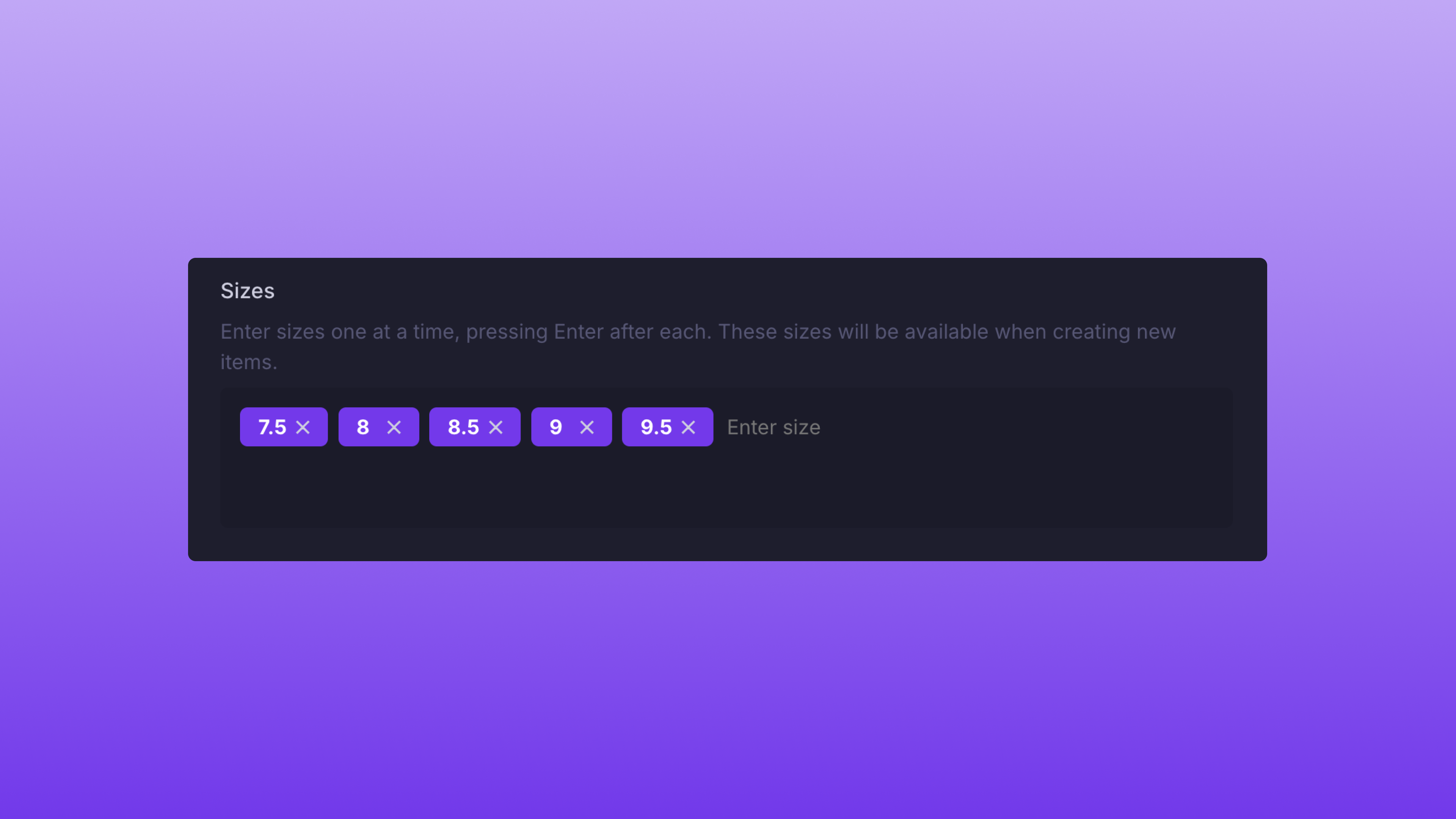 Efficiently manage your product offerings by adding size variations directly to your Product templates. This feature enables quick and accurate Item listings, allowing users to find the exact size they want to list. The sizes specified will be shown within the [Size Select](/platform/catalog/onboard-items#size-selection) element.
#### Adding Sizes
To add sizes to the Product template:
* Type in the size you want to add within the **Sizes** form
* Press **Enter** to confirm and add the size to your template
#### Deleting Sizes
By clicking the **X** icon located within the Size tab, you are able to delete sizes.
### Creating the Product
Here’s an example of a correct form:
Efficiently manage your product offerings by adding size variations directly to your Product templates. This feature enables quick and accurate Item listings, allowing users to find the exact size they want to list. The sizes specified will be shown within the [Size Select](/platform/catalog/onboard-items#size-selection) element.
#### Adding Sizes
To add sizes to the Product template:
* Type in the size you want to add within the **Sizes** form
* Press **Enter** to confirm and add the size to your template
#### Deleting Sizes
By clicking the **X** icon located within the Size tab, you are able to delete sizes.
### Creating the Product
Here’s an example of a correct form:
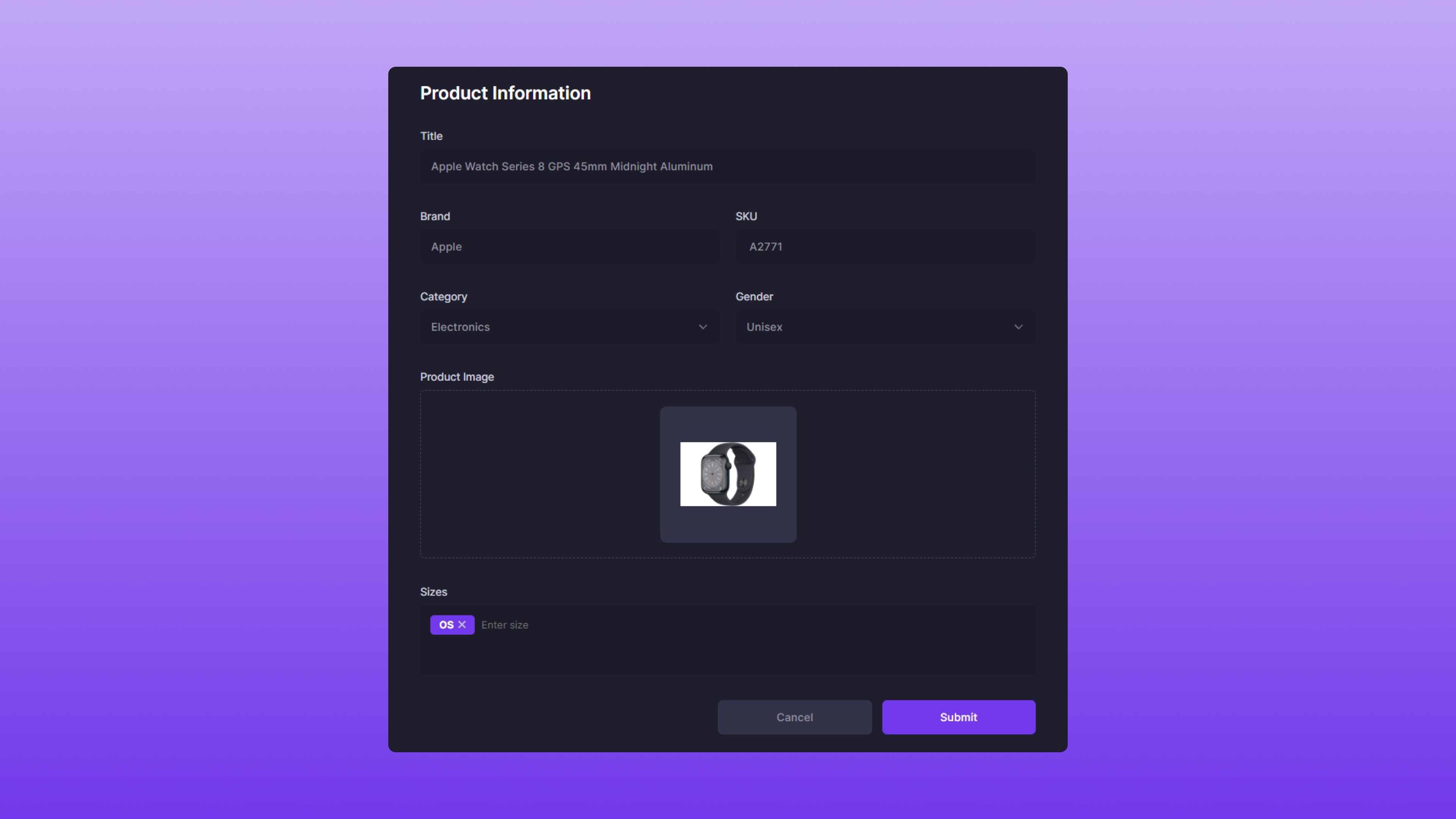 Once the form fields are filled out correctly, simply click **Submit** to create the Product.
### After Creation
After creation, the Product will be searchable via the [Catalog](/platform/catalog/search) and can now be used to create Items.
Once the form fields are filled out correctly, simply click **Submit** to create the Product.
### After Creation
After creation, the Product will be searchable via the [Catalog](/platform/catalog/search) and can now be used to create Items.