> ## Documentation Index
> Fetch the complete documentation index at: https://docs.withbind.com/llms.txt
> Use this file to discover all available pages before exploring further.
# Awaiting Payment
> Efficiently manage and process payouts for sold consigner inventory, ensuring timely compensation according to Seller Tiers through Checkbook.io.
## About
The Awaiting Payment page provides an overview of Consigner inventory that has been sold and is awaiting payment. Once a Consigner is paid for their Item, the status will be updated to **Paid** and moved to the [Paid](/platform/payouts/paid) page. The amount a Consigner receives for their sale depends on their specific [Seller Tier](/platform/store-settings/seller-tiers).
Since Bind payment integration uses [Checkbook](https://checkbook.io/), a positive bank balance is required. When a payout is submitted, it's deducted from the bank balance.
## Search
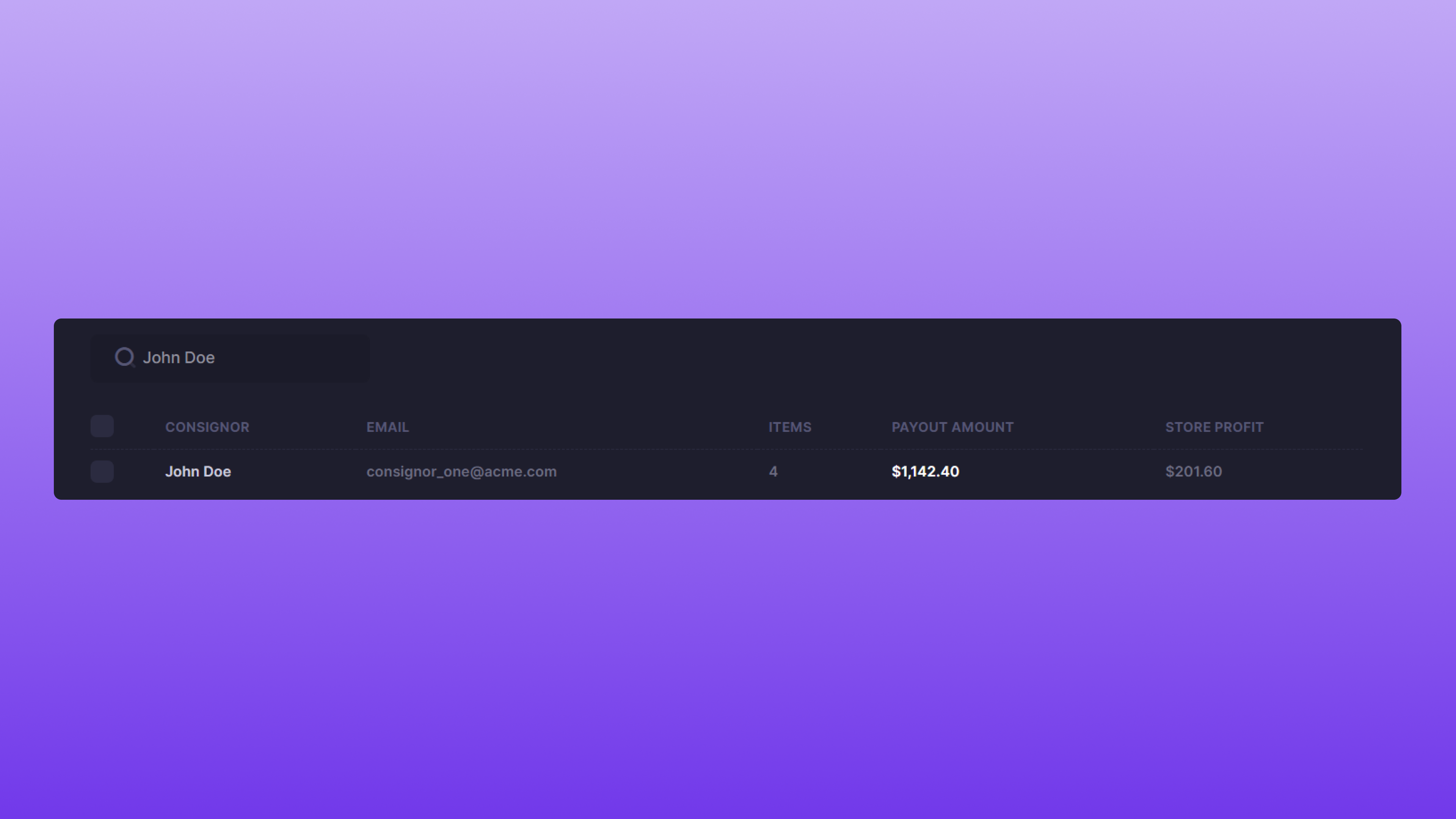 Awaiting Payments supports the ability to Search results to your specification. The attribute that is searchable is the consigner's name.
## View Pending Consigner Payout
Awaiting Payments supports the ability to Search results to your specification. The attribute that is searchable is the consigner's name.
## View Pending Consigner Payout
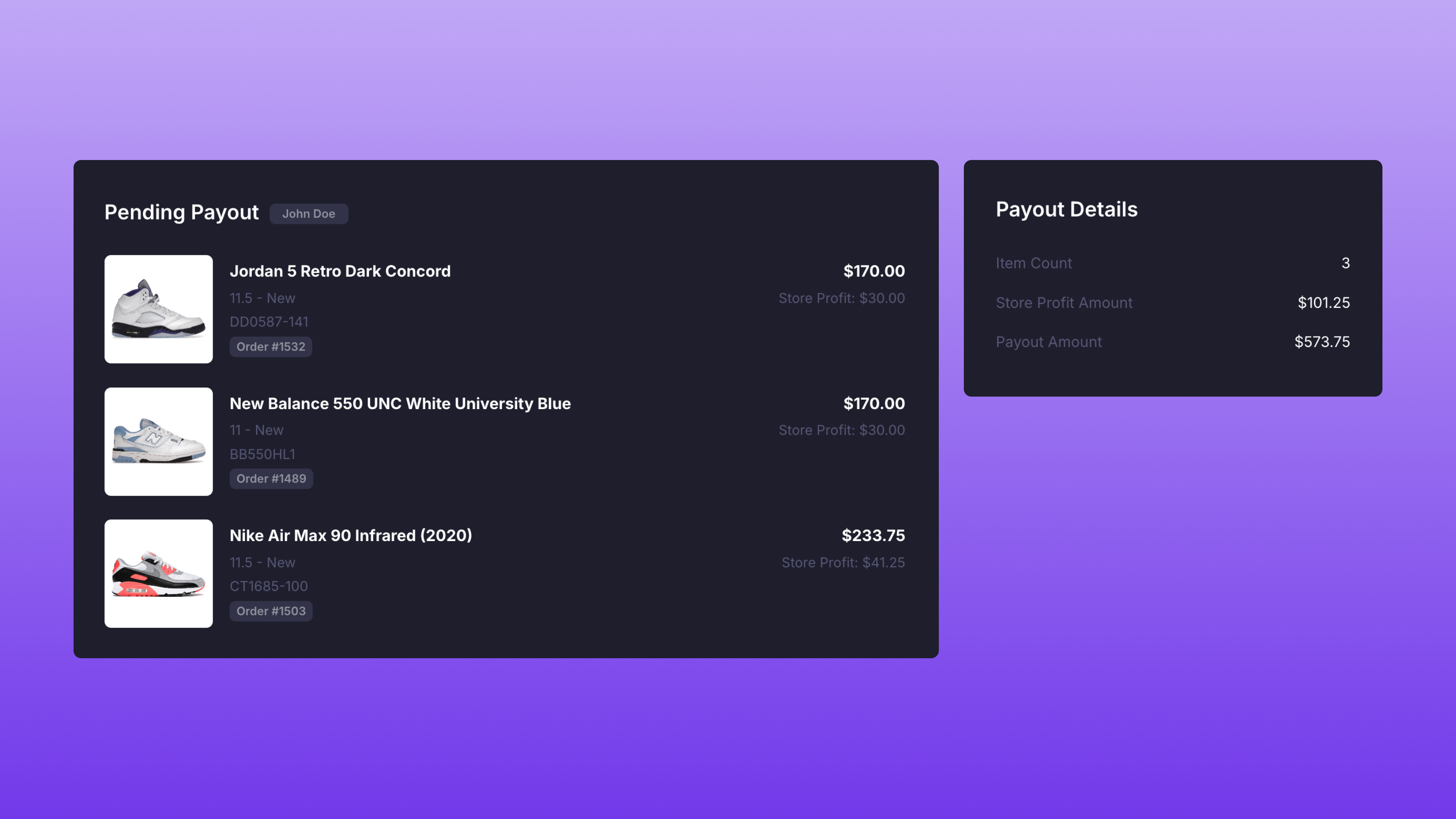 To view a pending Consigner Payout, select the **Consigner Name** corresponding to the pending payout you'd like to view. Another screen will populate listing all the items included in the consigner's pending payout. You can click the item title to view the [Item Overview](/platform/inventory/item-overview) or the Order Number to view the specific order via Shopify.
## Paying Consigners
To view a pending Consigner Payout, select the **Consigner Name** corresponding to the pending payout you'd like to view. Another screen will populate listing all the items included in the consigner's pending payout. You can click the item title to view the [Item Overview](/platform/inventory/item-overview) or the Order Number to view the specific order via Shopify.
## Paying Consigners
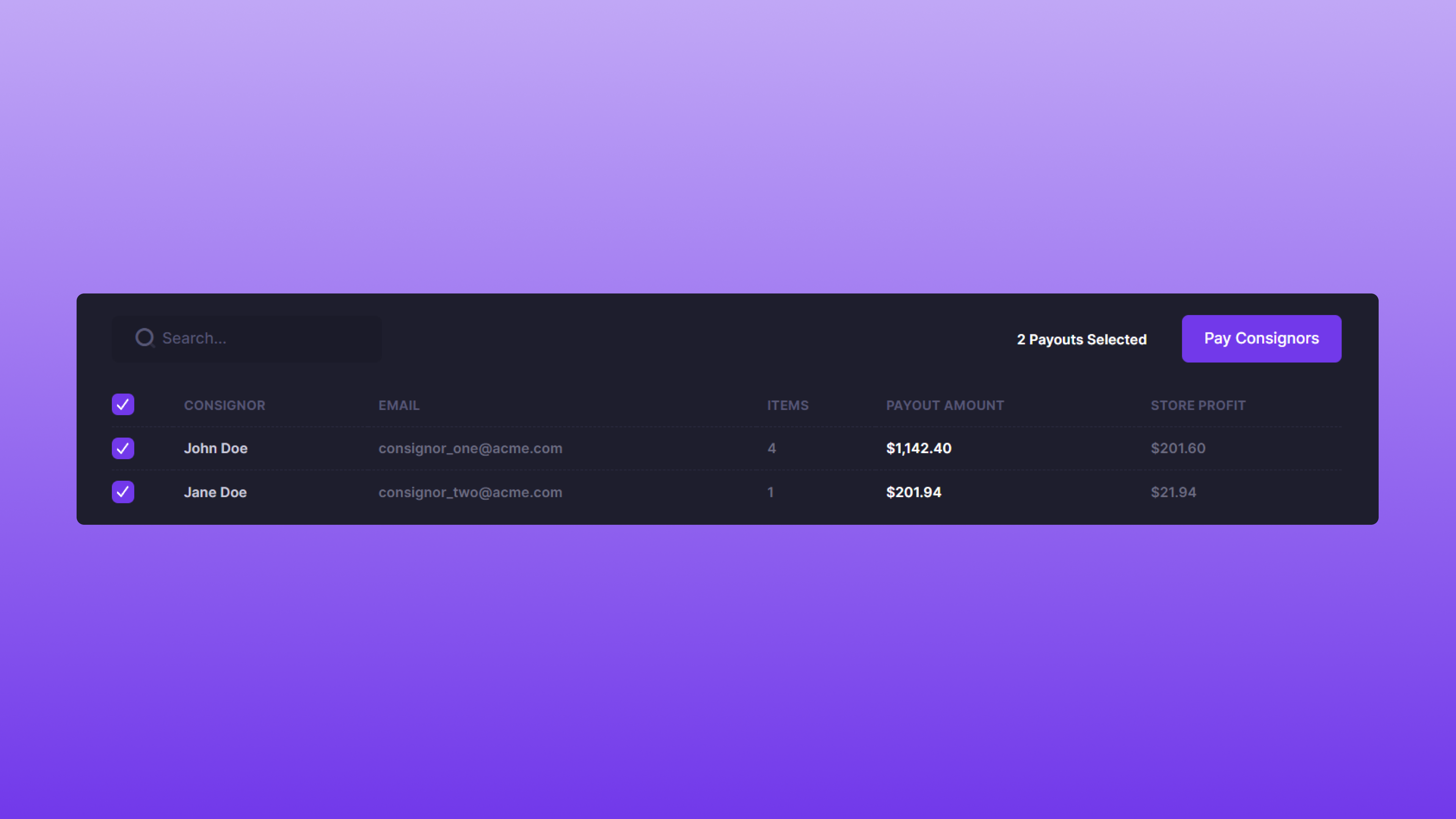 To pay a Consigner, select the corresponding consigner name that you wish to issue a payment to. Another screen will populate with all the items awaiting payment for that consigner. Once the correct payouts are selected, locate the **Pay Consigners** button and click it.
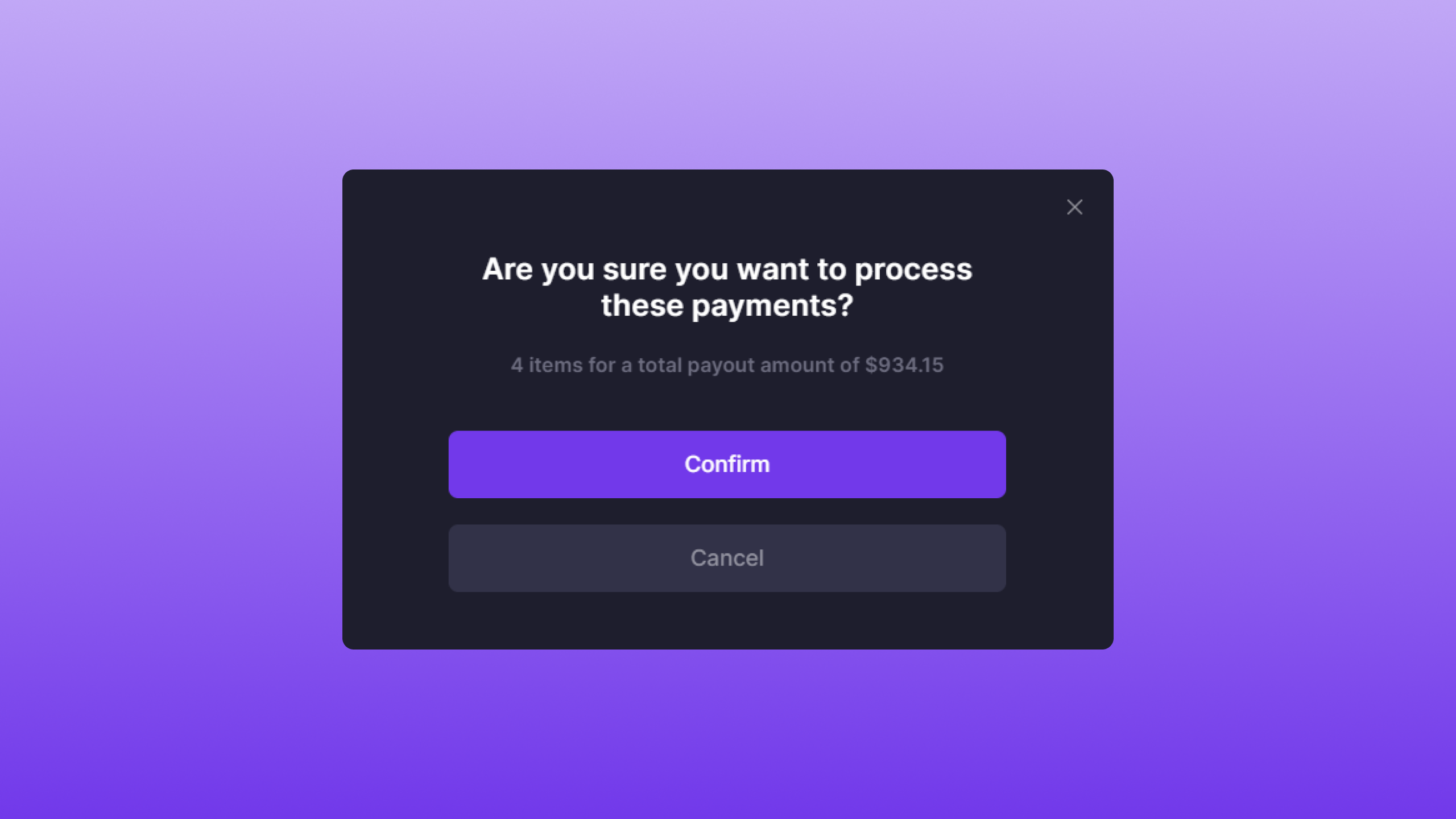 Once selected, a confirmation modal will appear that displays the number of Items and the total payout amount. To issue the payments, click **Confirm**.
### Ensuring Successful Payouts
* **Positive Bank Balance**: Ensure your Bank balance covers the payout amount to avoid disruptions. Successful payouts transition to the [Paid](/platform/payouts/paid) section, with consigners notified via email.
Once selected, a confirmation modal will appear that displays the number of Items and the total payout amount. To issue the payments, click **Confirm**.
### Ensuring Successful Payouts
* **Positive Bank Balance**: Ensure your Bank balance covers the payout amount to avoid disruptions. Successful payouts transition to the [Paid](/platform/payouts/paid) section, with consigners notified via email.