> ## Documentation Index
> Fetch the complete documentation index at: https://docs.withbind.com/llms.txt
> Use this file to discover all available pages before exploring further.
# Consigners
> Explore and manage Consigners, including detailed insights into their inventory and sales performance, while easily updating their Seller Tiers and account status.
## About
The Consigners page provides an overview of every Consigner and their personal attributes, such as:
* Full Name
* Email
* Phone Number
* Consginer Refernce ID
* [Seller Tier](/platform/store-settings/seller-tiers)
* Joined Date
* Account Status
## Creating Consigner
To create a Consigner, simply click the **Create Consigner** button.

A modal will appear that requires the following attributes:
* **Email Address**: The email address the Consigner will use to log in.
* **Phone Number**: Consigner's phone number.
* **First Name**: Consigner's first name.
* **Last Name**: Consigner's last name.
* **Tier**: Consigner's seller tier.
After entering the required information, click **Submit**.
### After Creation
Once created, the Consigner will receive a Forgot Password email to reset their password. Upon successfully resetting their password, the Consigner will be able to manage their consignment account.
## Consigner Overview
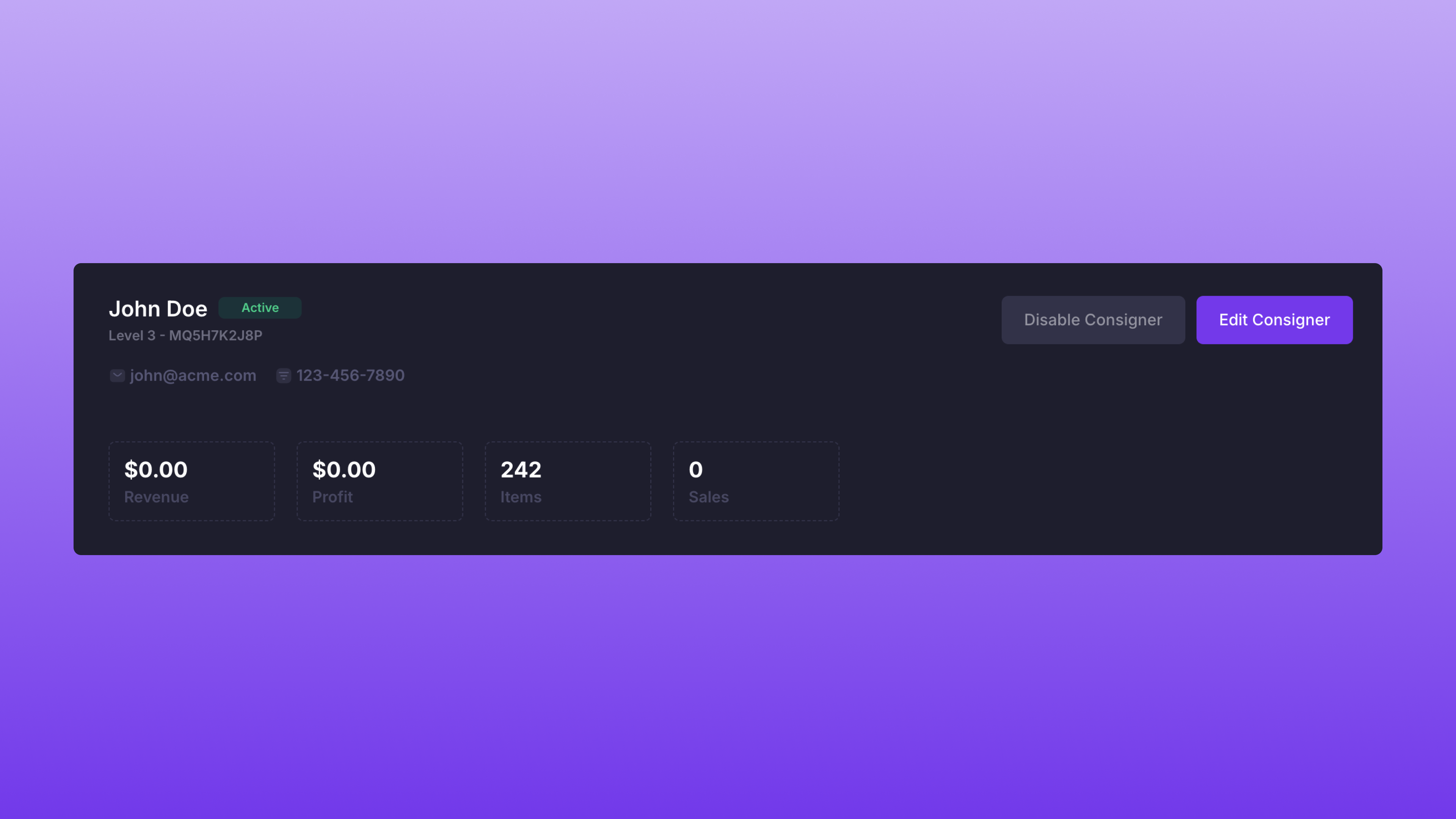 The Consigner Overview page provides details for a Consigner's existing inventory and any previous sales. Analytics regarding items, sales, revenue, and profit are shown at the top of the page. A Consigner's [Seller Tier](/platform/store-settings/seller-tiers) and status are also displayed.
On the **Inventory** or **Orders** tab, click an item to be taken to the specific [Item Overview](/platform/inventory/item-overview) page.
## Update Consigner's Seller Tier
To update a Consigner's Seller Tier, simply click the **Edit Consigner** button.
The Consigner Overview page provides details for a Consigner's existing inventory and any previous sales. Analytics regarding items, sales, revenue, and profit are shown at the top of the page. A Consigner's [Seller Tier](/platform/store-settings/seller-tiers) and status are also displayed.
On the **Inventory** or **Orders** tab, click an item to be taken to the specific [Item Overview](/platform/inventory/item-overview) page.
## Update Consigner's Seller Tier
To update a Consigner's Seller Tier, simply click the **Edit Consigner** button.
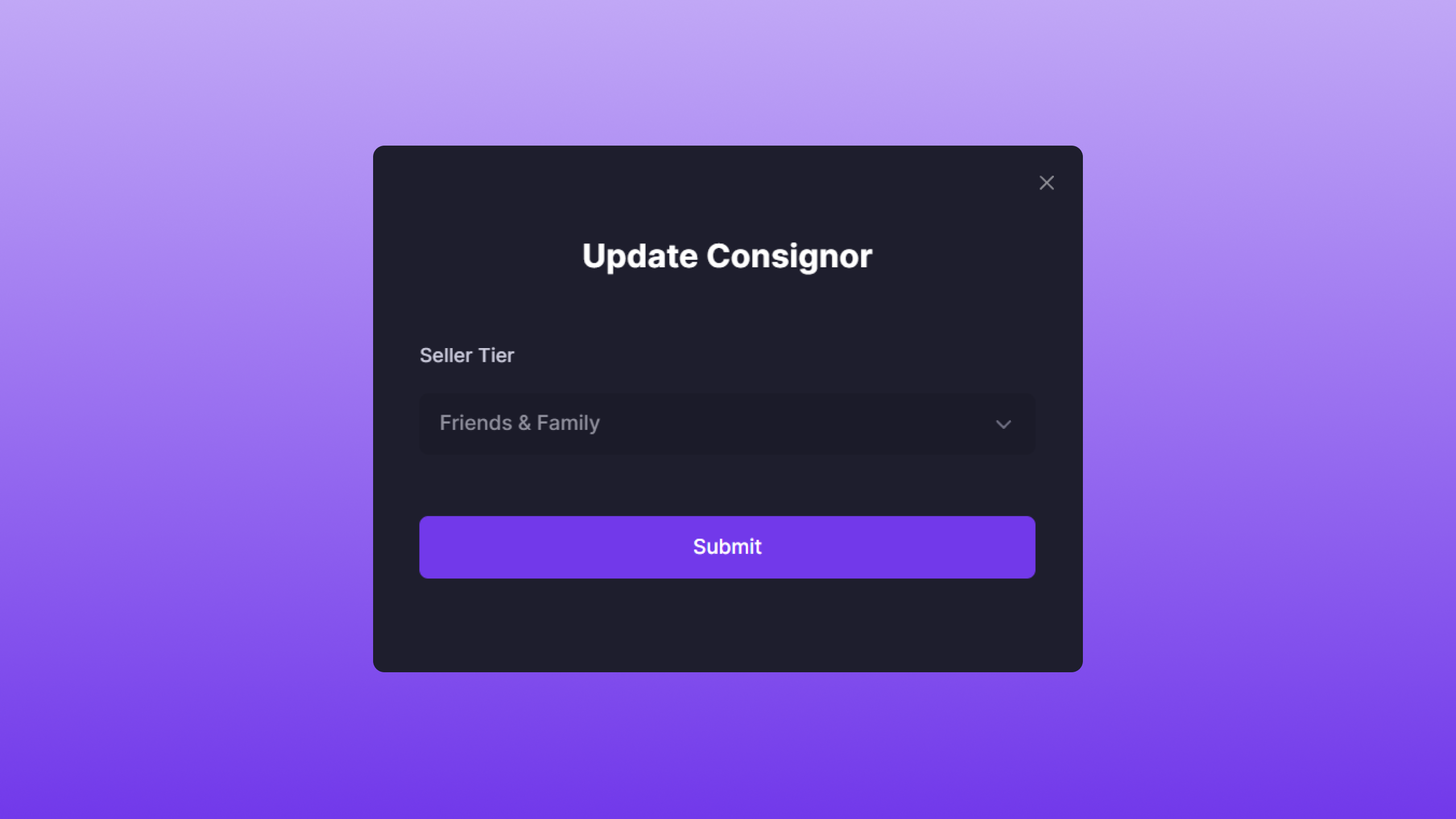 Once clicked, a modal will appear that displays all of the [Seller Tiers](/platform/store-settings/seller-tiers) that belong to a store. Select the desired Seller Tier and click **Submit**.
### After Updating
Upon updating a Consigner's Seller Tier, their updated Item payout amounts will be reflected within Bind and on Shopify. The profit amount will also be updated to the correct value.
## Disable Consigner
To disable a Consigner, simply click **Disable Consigner**.
Once clicked, a modal will appear that displays all of the [Seller Tiers](/platform/store-settings/seller-tiers) that belong to a store. Select the desired Seller Tier and click **Submit**.
### After Updating
Upon updating a Consigner's Seller Tier, their updated Item payout amounts will be reflected within Bind and on Shopify. The profit amount will also be updated to the correct value.
## Disable Consigner
To disable a Consigner, simply click **Disable Consigner**.
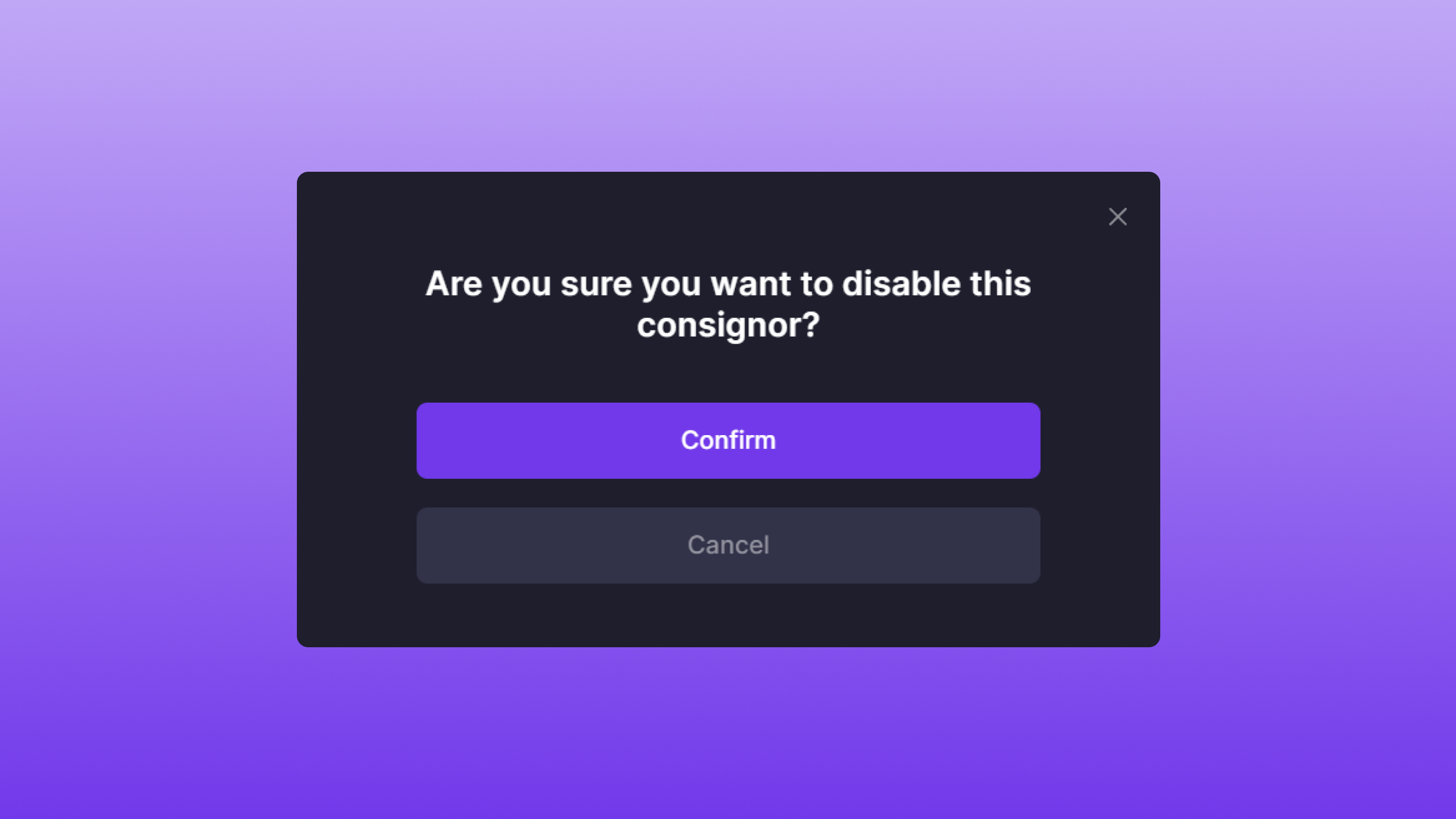 Once clicked, a confirmation modal will appear. To disable the Consigner, click **Confirm**.
**Note:** Disabling a Consigner account is a permanent action.
### After Disabling
Upon disabling a Consigner, the status of their Items will move to **Withdrawal Requested**. The Consigner will also receive an email to notify them that their account was disabled. The Consigner will not be able to log back in.
Once clicked, a confirmation modal will appear. To disable the Consigner, click **Confirm**.
**Note:** Disabling a Consigner account is a permanent action.
### After Disabling
Upon disabling a Consigner, the status of their Items will move to **Withdrawal Requested**. The Consigner will also receive an email to notify them that their account was disabled. The Consigner will not be able to log back in.