> ## Documentation Index
> Fetch the complete documentation index at: https://docs.withbind.com/llms.txt
> Use this file to discover all available pages before exploring further.
# Employees
> Streamline your team management with the Employees page, offering insights into each member's role, activities, and the tools to adjust their operational status.
## About
The Employees page provides an overview of every Employee and their personal attributes, such as:
* Full Name
* Email
* Joined Date
* Account Status
## Employee Overview
The Employee Overview page provides details for an Employee and their overall actions.
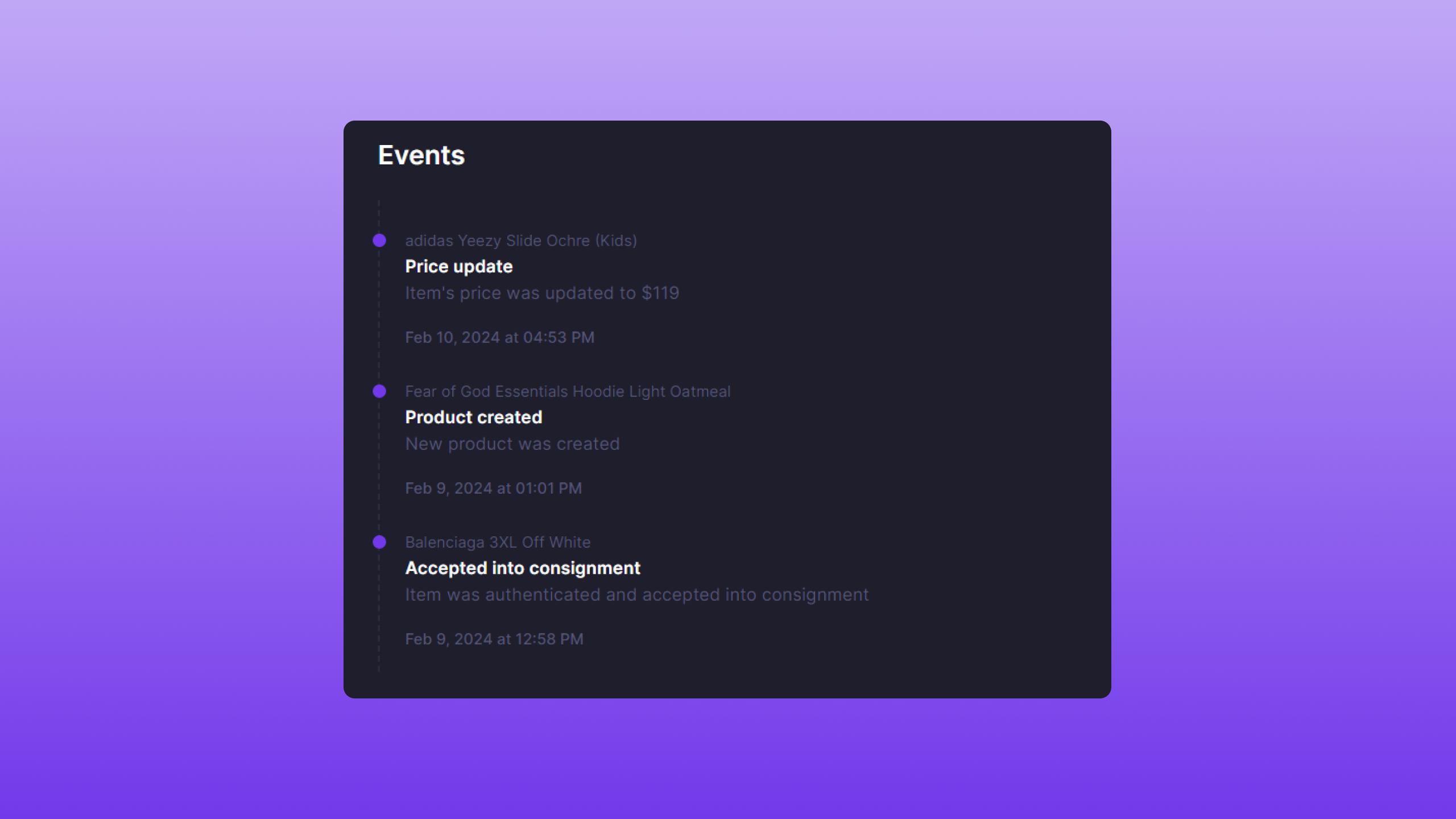 Admins can view a detailed Event log for every resource an Employee interacts with. This could be a good way to benchmark an Employee's contribution to inventory management. Bind also provides an Event counter, which counts the total Events per Employee.
Employee-related Events can be found [here](/features/tracking/resource-events).
## Creating Employee
To create an Employee, simply click the **Create Employee** button.
Admins can view a detailed Event log for every resource an Employee interacts with. This could be a good way to benchmark an Employee's contribution to inventory management. Bind also provides an Event counter, which counts the total Events per Employee.
Employee-related Events can be found [here](/features/tracking/resource-events).
## Creating Employee
To create an Employee, simply click the **Create Employee** button.
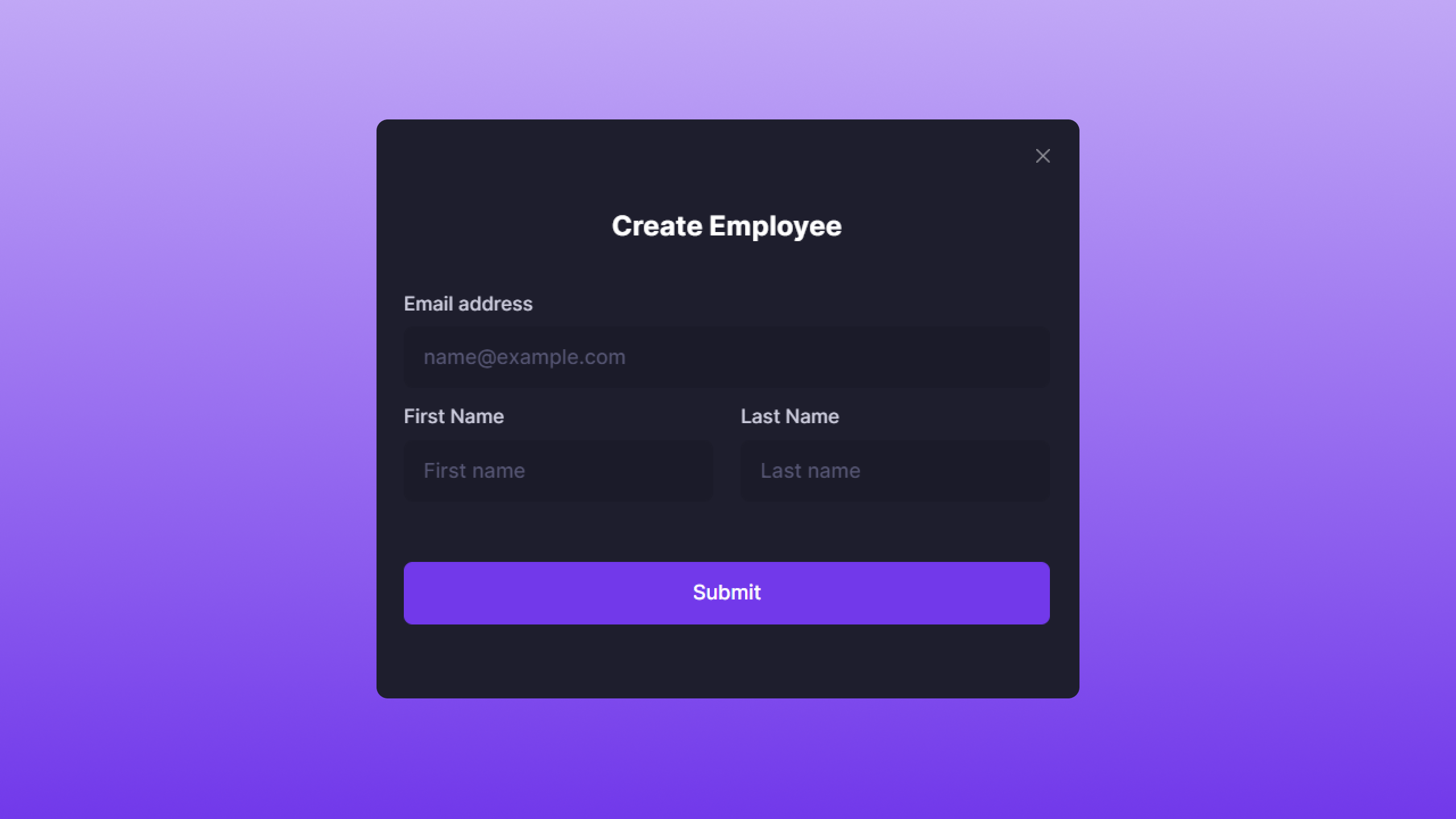 A modal will appear that requires the following attributes:
* **Email Address**: The email the Employee will use to log in.
* **First Name**: Employee's first name.
* **Last Name**: Employee's last name.
After entering the required information, click **Submit**.
### After Creation
Once created, the Employee will receive a Forgot Password email to reset their password. Upon successfully resetting their password, the Employee will be able to manage business operations.
## Disabling Employee
Disabling an Employee's account is useful when they are no longer with the company. To disable an Employee, simply click **Disable Employee**.
A modal will appear that requires the following attributes:
* **Email Address**: The email the Employee will use to log in.
* **First Name**: Employee's first name.
* **Last Name**: Employee's last name.
After entering the required information, click **Submit**.
### After Creation
Once created, the Employee will receive a Forgot Password email to reset their password. Upon successfully resetting their password, the Employee will be able to manage business operations.
## Disabling Employee
Disabling an Employee's account is useful when they are no longer with the company. To disable an Employee, simply click **Disable Employee**.
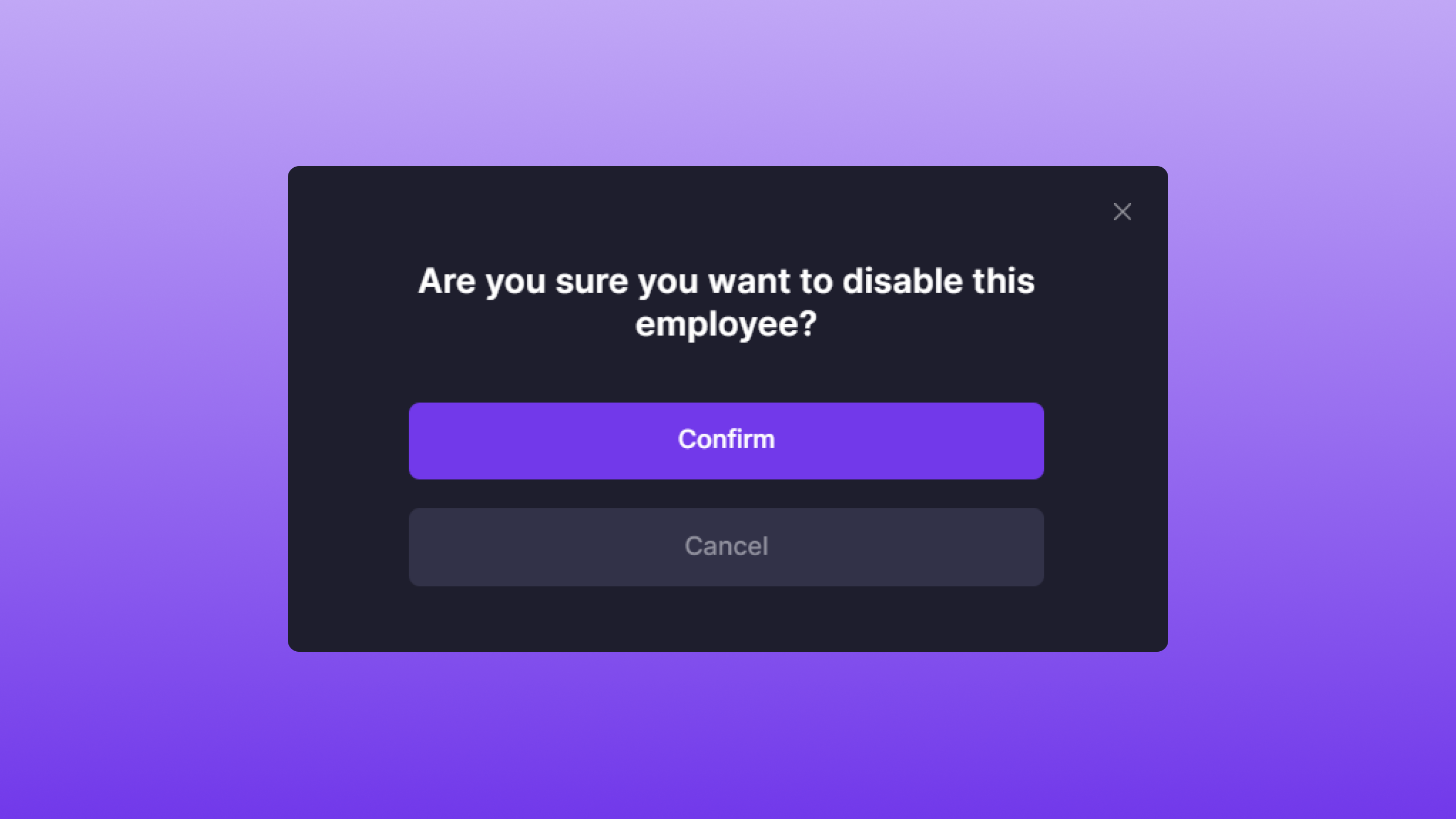 Once clicked, a confirmation modal will appear. To disable the Employee, click **Confirm**.
**Note:** Disabling an Employee account is a permanent action.
### After Disabling
Upon disabling an Employee, they will not be able to log back in. Their permissions will be revoked, and they will no longer have any access to a store's data.
Once clicked, a confirmation modal will appear. To disable the Employee, click **Confirm**.
**Note:** Disabling an Employee account is a permanent action.
### After Disabling
Upon disabling an Employee, they will not be able to log back in. Their permissions will be revoked, and they will no longer have any access to a store's data.